


Yakyard is your team's chat. If you have used Slack, you already know most of it. This page covers the rest in about five minutes.
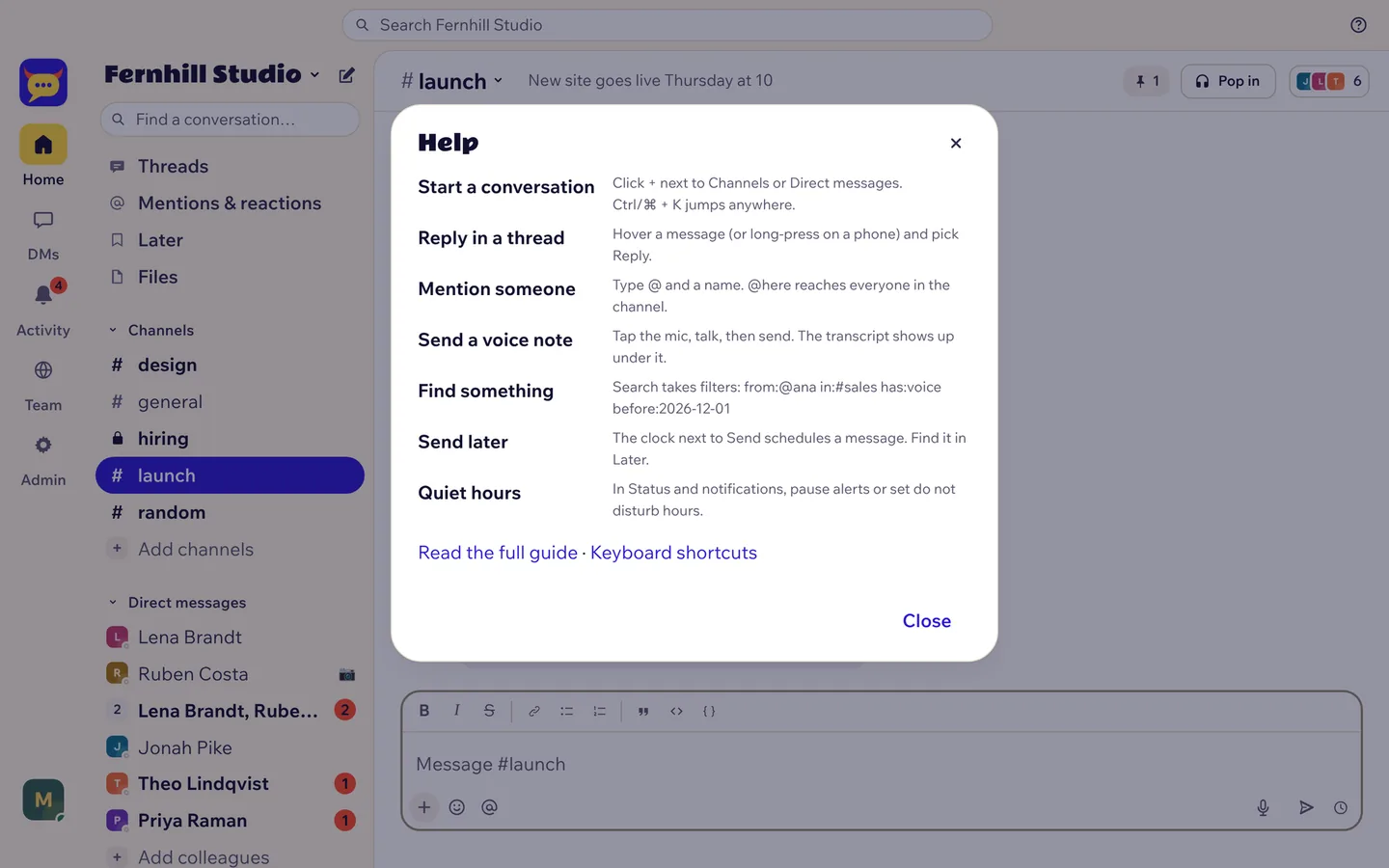
The ? button at the top right of the app has the short version of this page.
Sign in
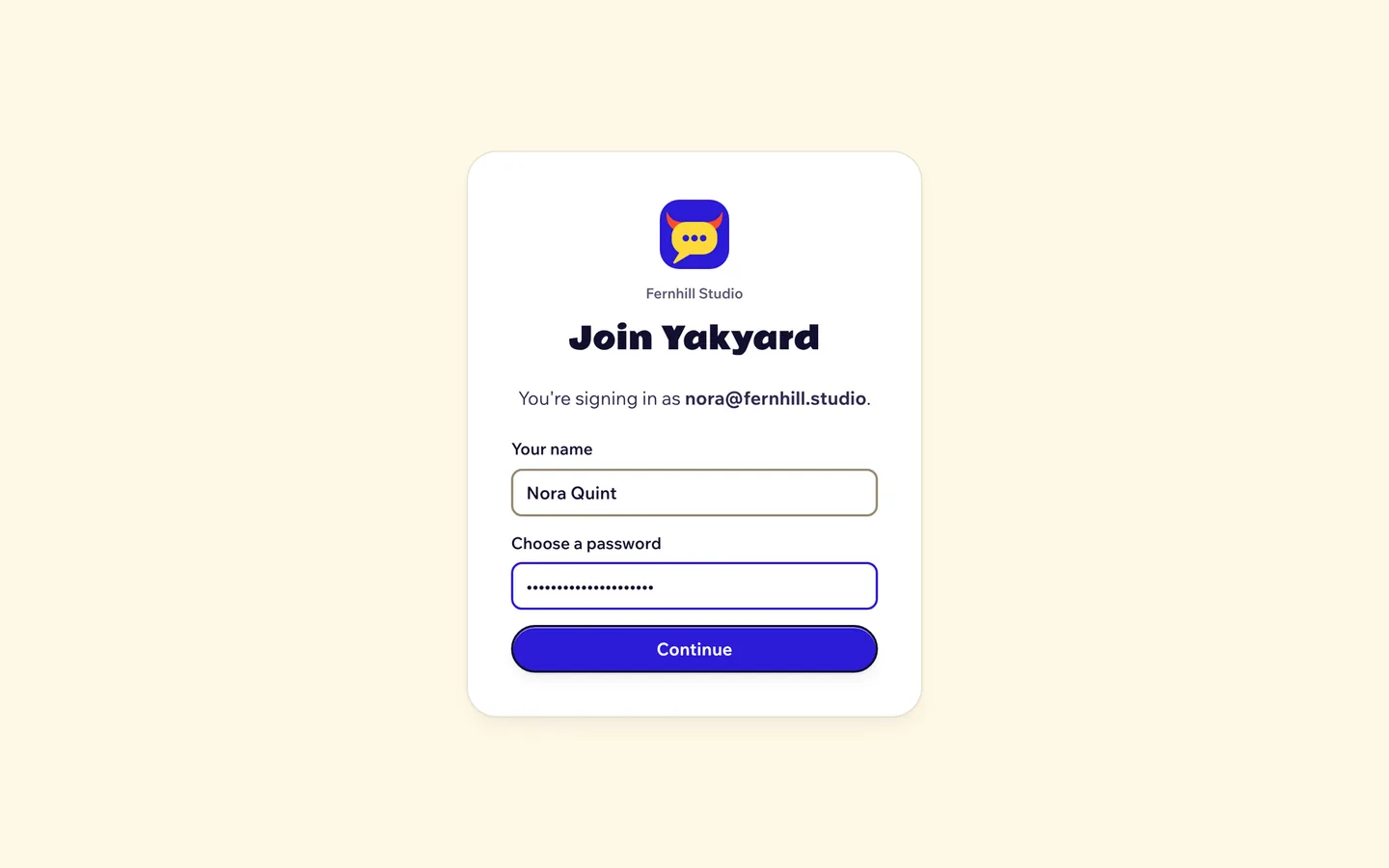
Someone on your team sends you a link. Open it, type your name, pick a password of at least 10 characters, and you're in.
Next time, open your team's Yakyard address and sign in with your email and password. If your team turned on Google, you can click Continue with Google instead.
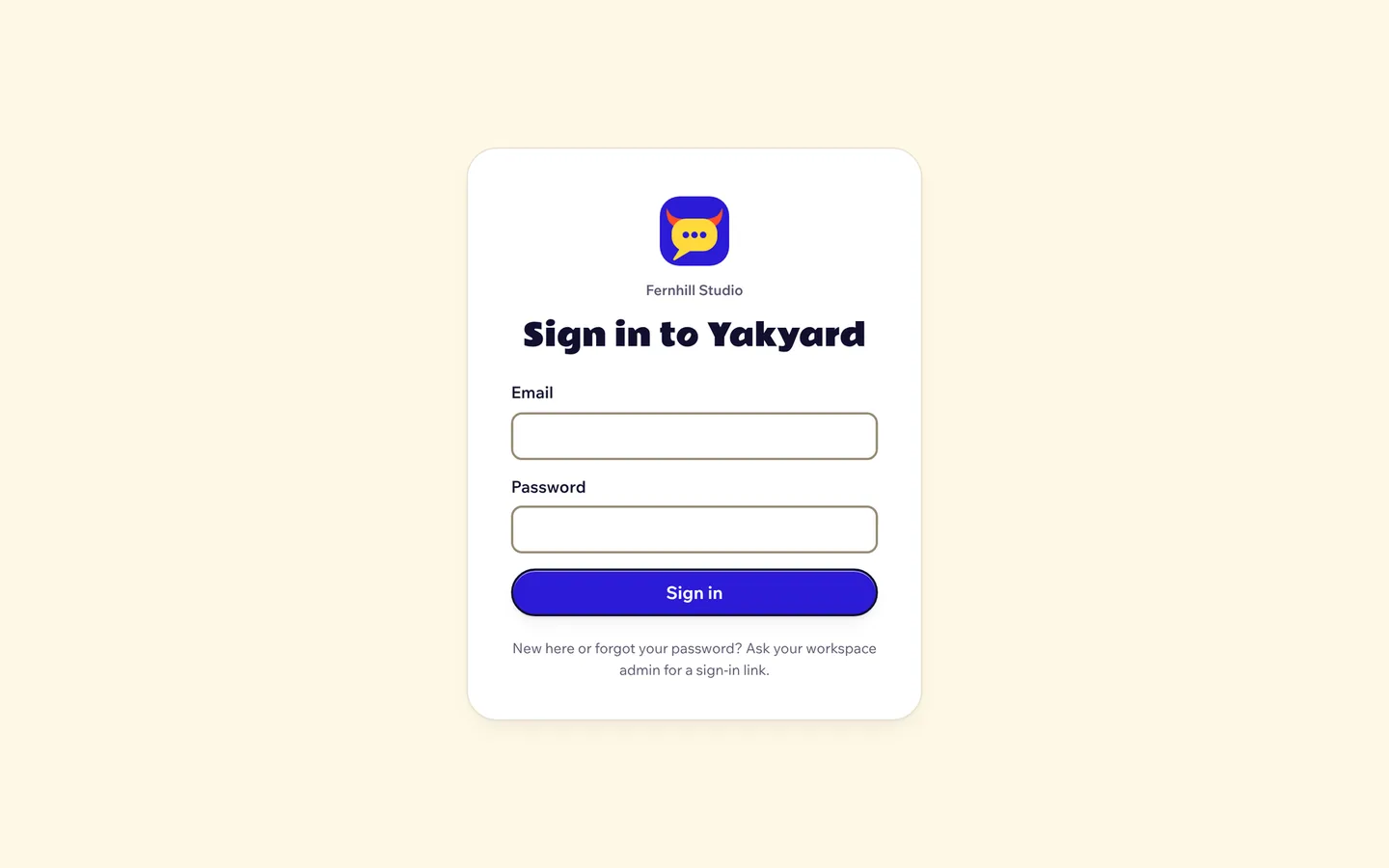
Forgot your password? Ask your admin for a new link. To change it yourself, open Status and notifications and use Password. Changing it signs you out on your other devices.
Put it on your phone and computer
Yakyard works in any browser. Installed, it gets its own icon, opens like a normal app, and can send notifications.
- iPhone or iPad: open your Yakyard address in Safari, tap Share, then Add to Home Screen.
- Android: in Chrome, tap the three dots at the top right, then Install app.
- Computer: in Chrome or Edge, click the install icon at the right end of the address bar. In Safari on a Mac, use File, then Add to Dock.
The Get the app button at the bottom of the sidebar shows the steps for your device.
Channels and direct messages
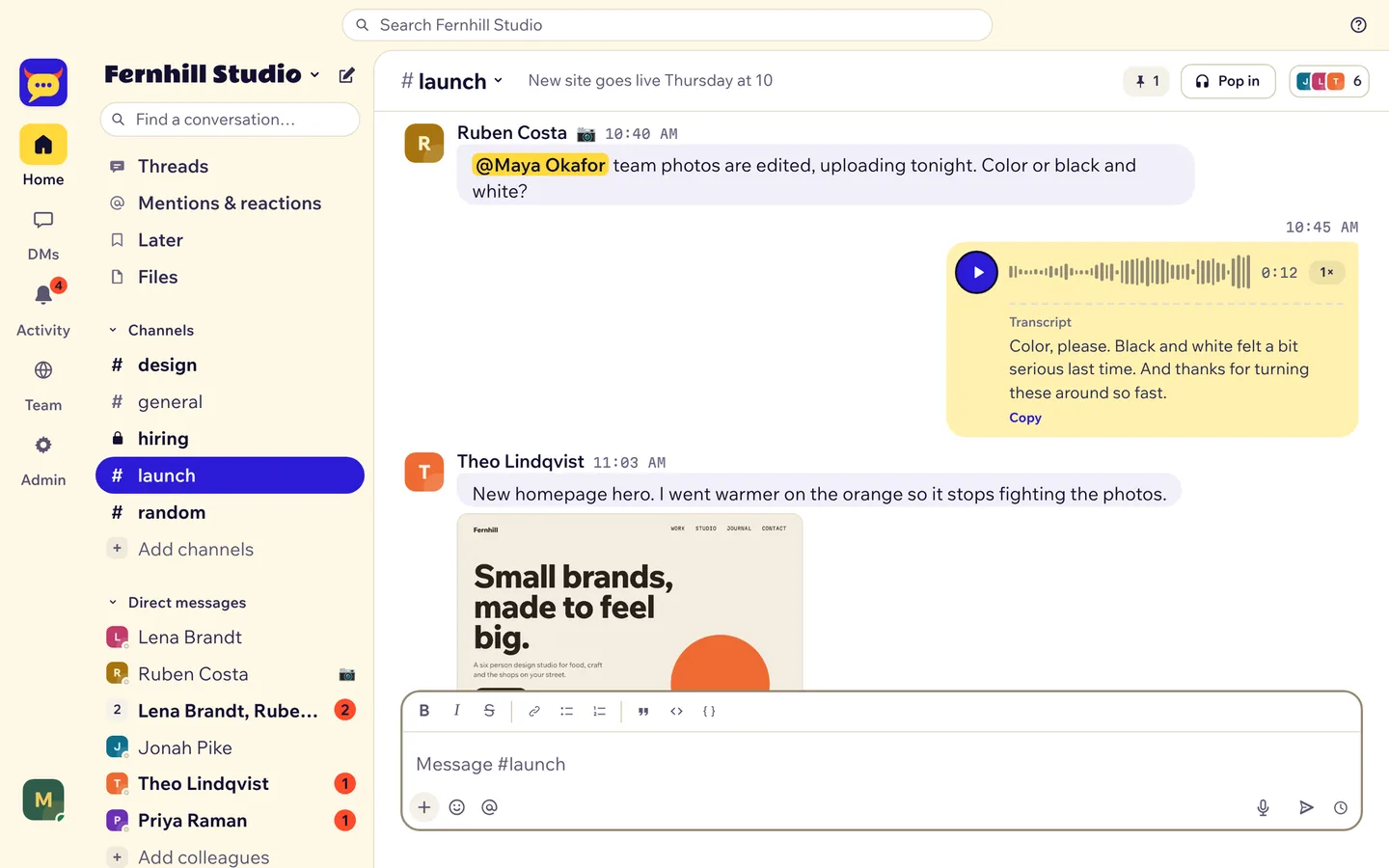
- Channels are for topics and projects. Everyone in the team can join public channels. Private channels (with a lock) are for the people in them.
- Direct messages are for one person or a small group, up to 9 people.
- Click Add channels to browse or create a channel. Click Add colleagues or the pencil at the top to start a direct message.
- Press Ctrl + K (⌘ + K on a Mac) to jump to any conversation by typing its name.
- Write in the box at the bottom. Enter sends. Shift + Enter starts a new line. You can change that in Status and notifications, under Enter key.
- The buttons above the box make text bold, italic, a list, a quote or code. No codes to remember.
- Drop files or photos on the box to attach them, up to 1 GB each.
- To edit or delete your message, hover it (or long-press on a phone) and open the three dots. Up arrow in an empty box edits your last one.
Threads
Keep side conversations out of the way. Hover a message and click Reply (on a phone, long-press it). Replies open on the right. Tick Also send to #channel if everyone should see your reply.
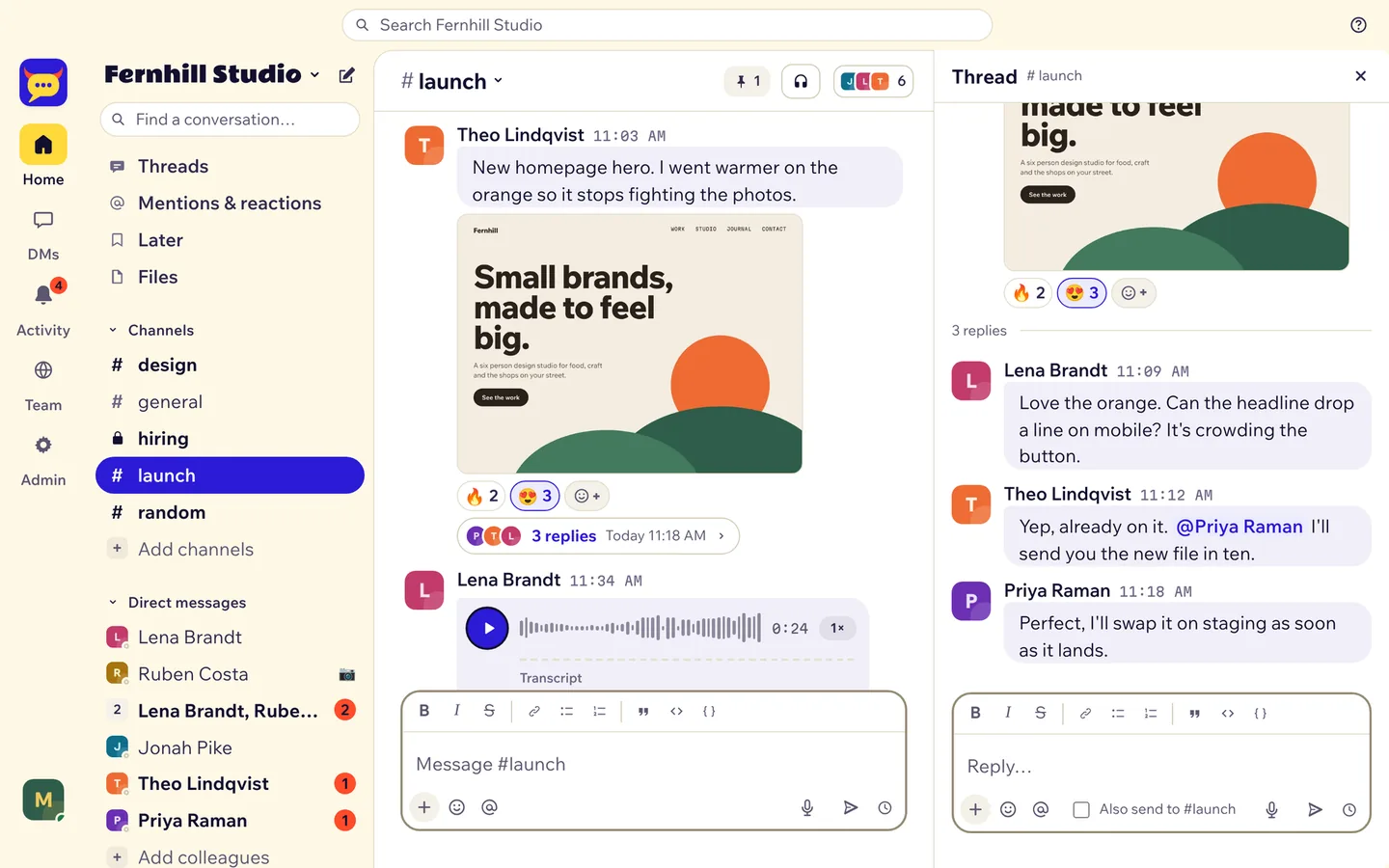
Threads in the sidebar lists every thread you started or replied to.
Mentions and reactions
Type @ and a name to get someone's attention. They get a notification. @here or @channel reaches everyone in the conversation, so use it when it matters.
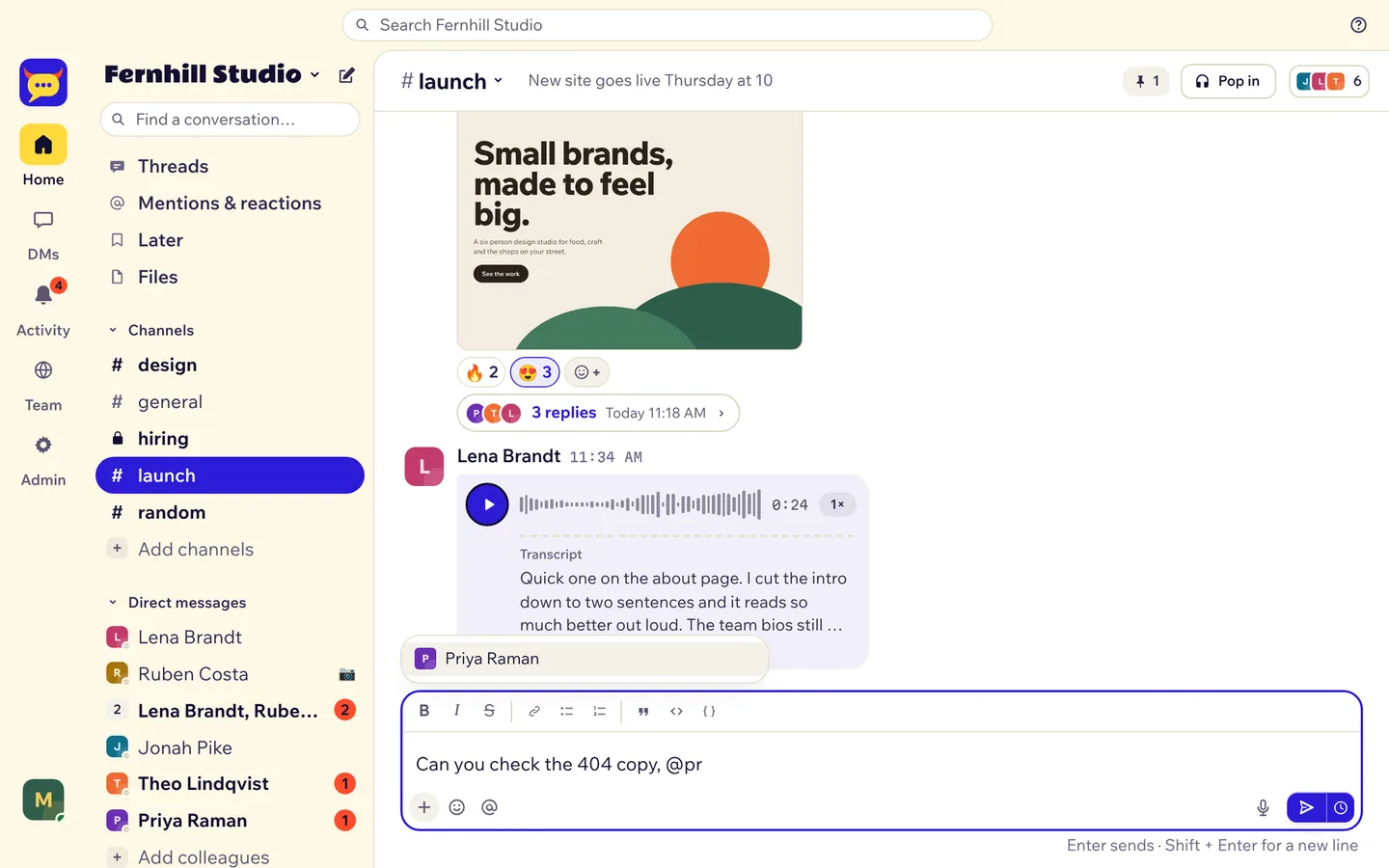
To react, hover a message and pick an emoji. Hover a reaction to see who reacted. Mentions & reactions in the sidebar shows everything aimed at you.
Voice notes and transcripts
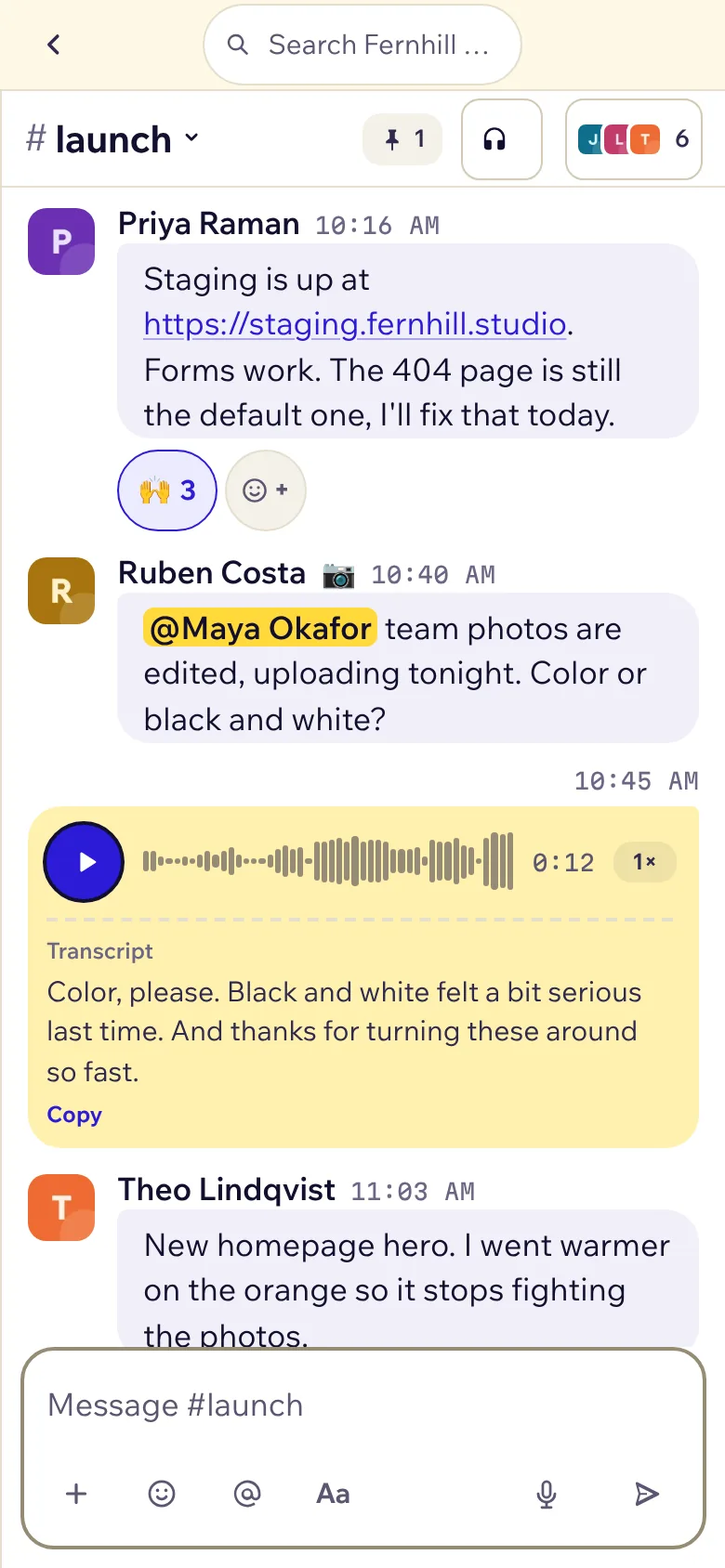
Tap the mic in the message box, talk, then send. Up to 15 minutes.
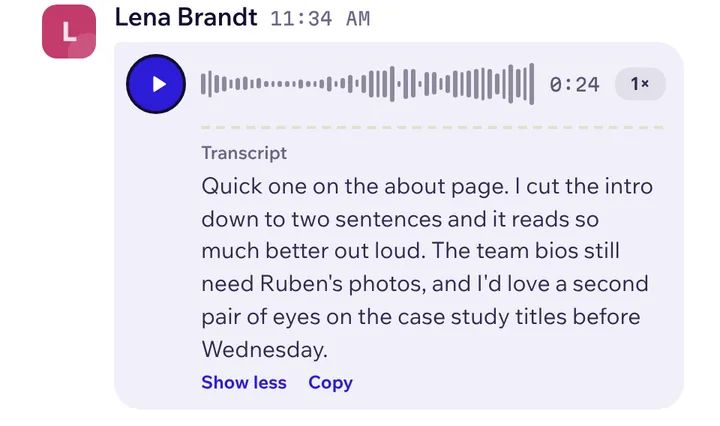
- Yakyard writes down what you said. The transcript shows under the note and is searchable.
- Play at 1x, 1.5x or 2x. Click the waveform to jump.
- Phone notifications for a voice note show the first words.
- Your team has about 3.5 hours of free transcripts a day. When they run out, the note still sends and plays, and it says The transcript comes tomorrow. It arrives by itself after midnight UTC.
Pop in: calls
Click Pop in at the top of any channel or direct message to start a voice call there. Others see it and can pop in too. Turn on video or share your screen from the call bar. Ctrl + Shift + H pops you in or out.
Search
Click the search bar at the top, or press Ctrl + F. Type words, or add filters:
| Type | To find |
|---|---|
from:@ana |
messages from Ana |
in:#launch-plans |
messages in one channel |
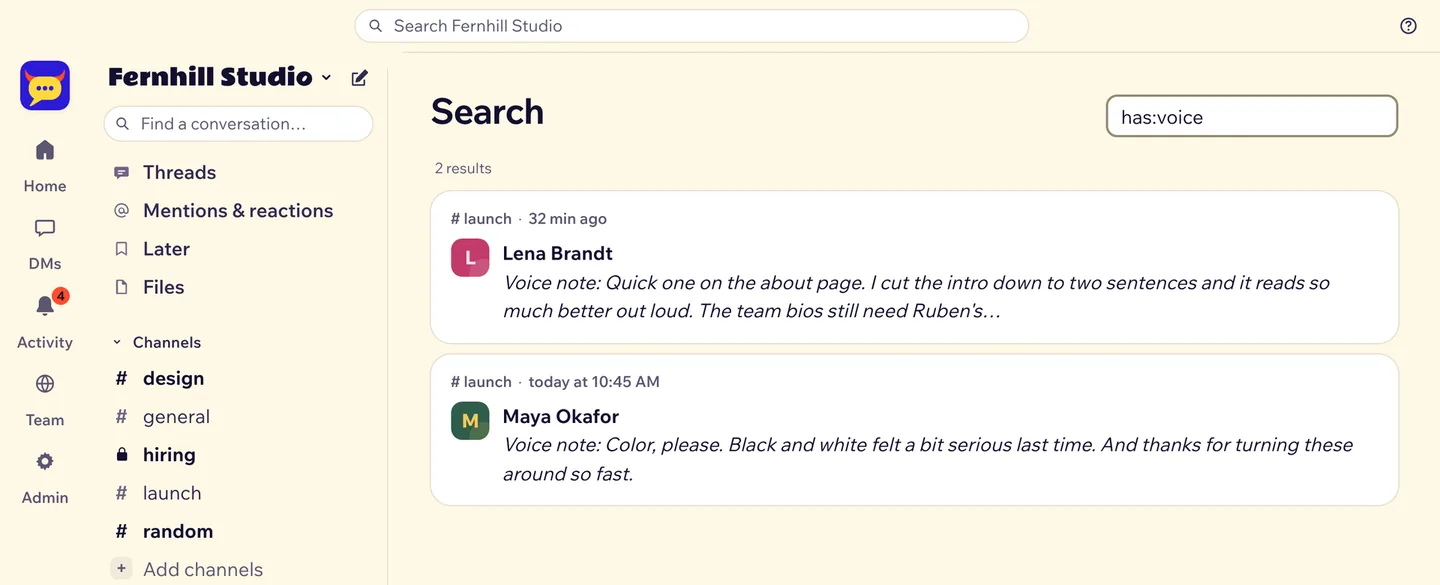
has:voice |
voice notes (their transcripts are searched too) |
has:file, has:image, has:link |
messages with files, photos or links |
has:pin, has:reaction |
pinned messages, messages with reactions |
before:2026-12-01, after:2026-11-01, on:2026-11-21 |
messages by date |
Mix them: banner from:@ben in:#launch-plans.
Files in the sidebar lists every file shared with you, with filters for photos, documents and more.
Send later, reminders and Later
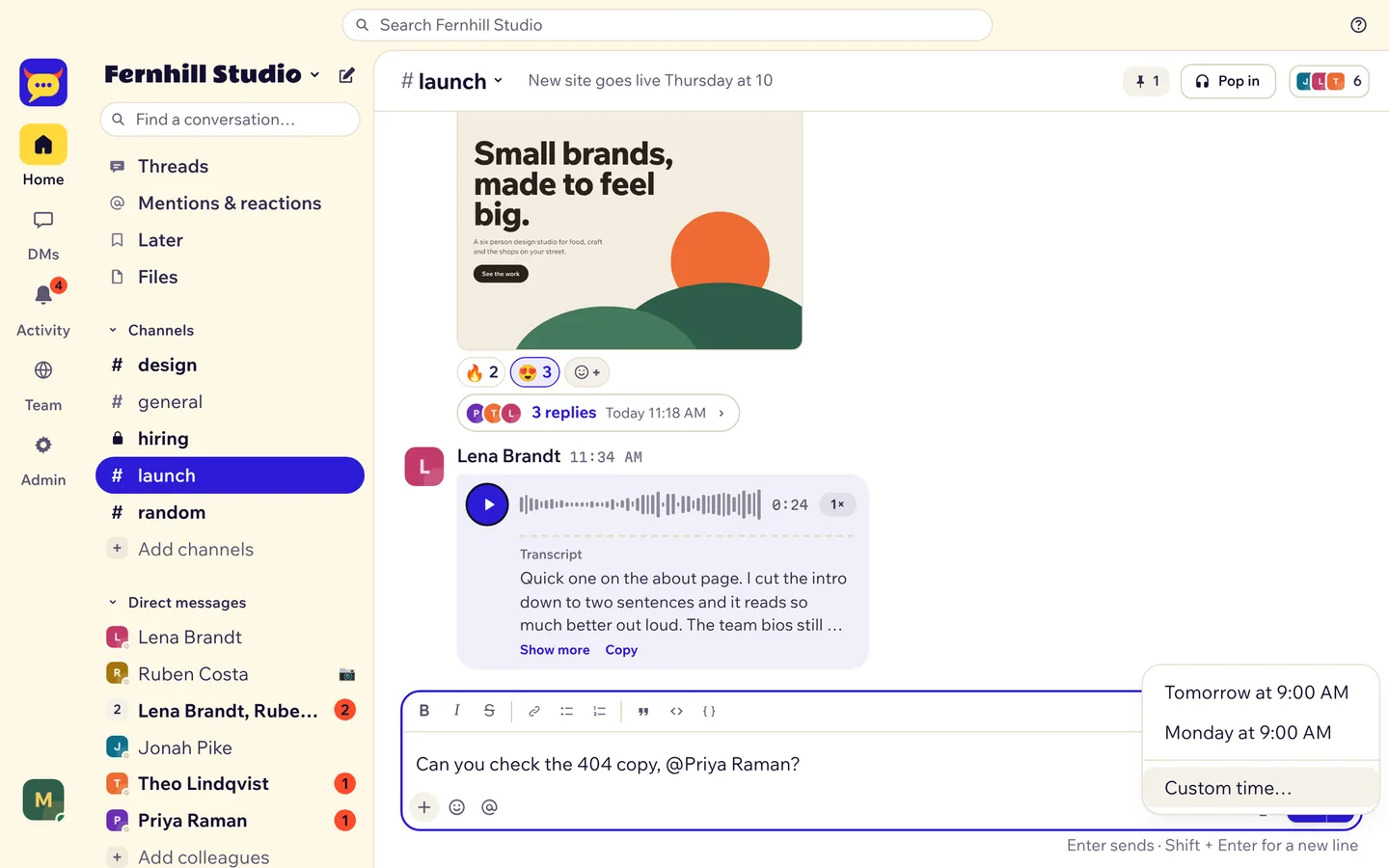
- Send later: write your message, then click the clock next to Send. Pick a time.
- Remind me: hover a message, open the three dots, Remind me about this. The Yakyard bot sends you a direct message at that time.
- Save for later: hover a message and click the bookmark.
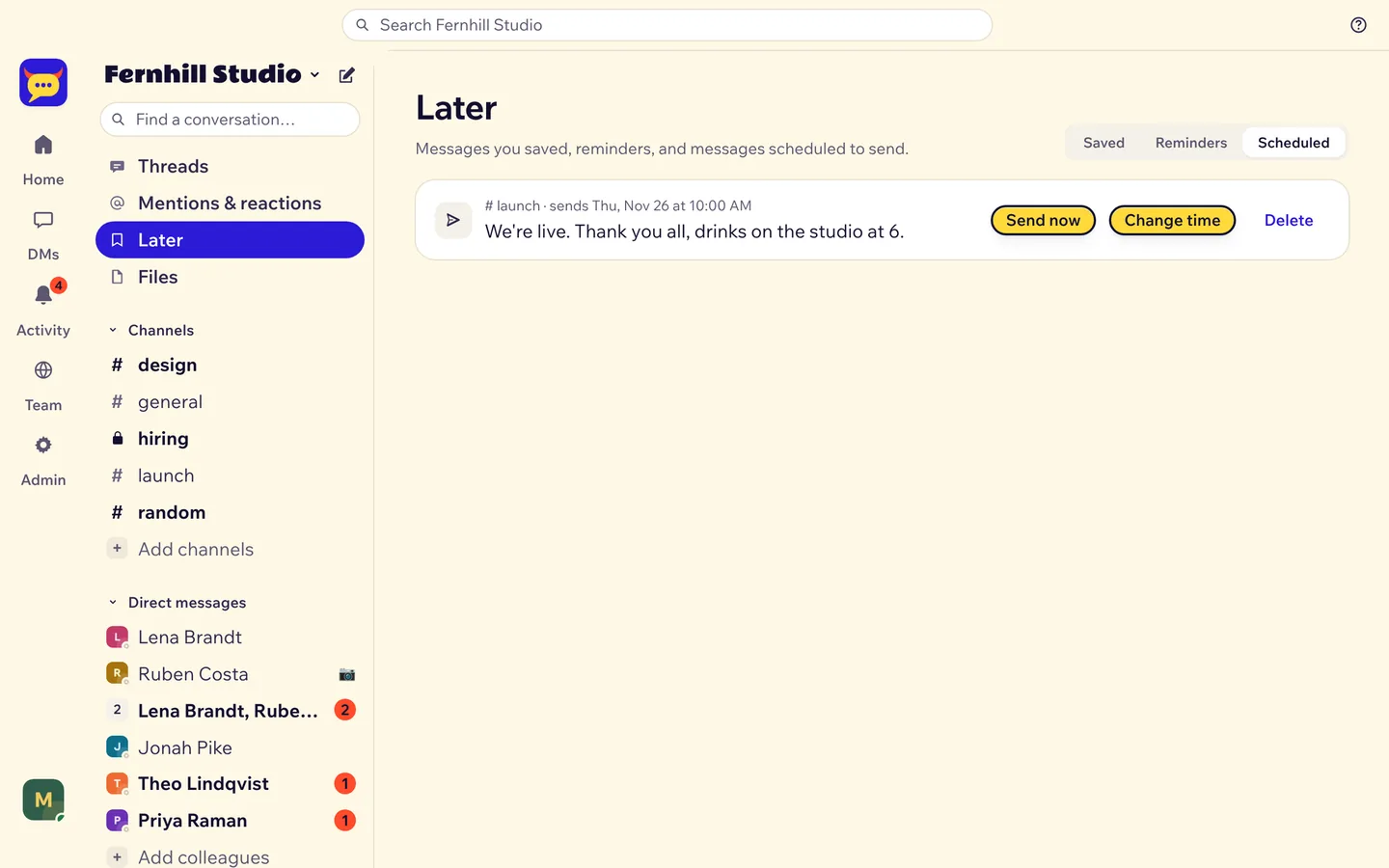
Later in the sidebar keeps all three in one place, on three tabs. You can send a scheduled message now, change its time, or delete it.
Notifications
Open Status and notifications from your picture at the bottom left.
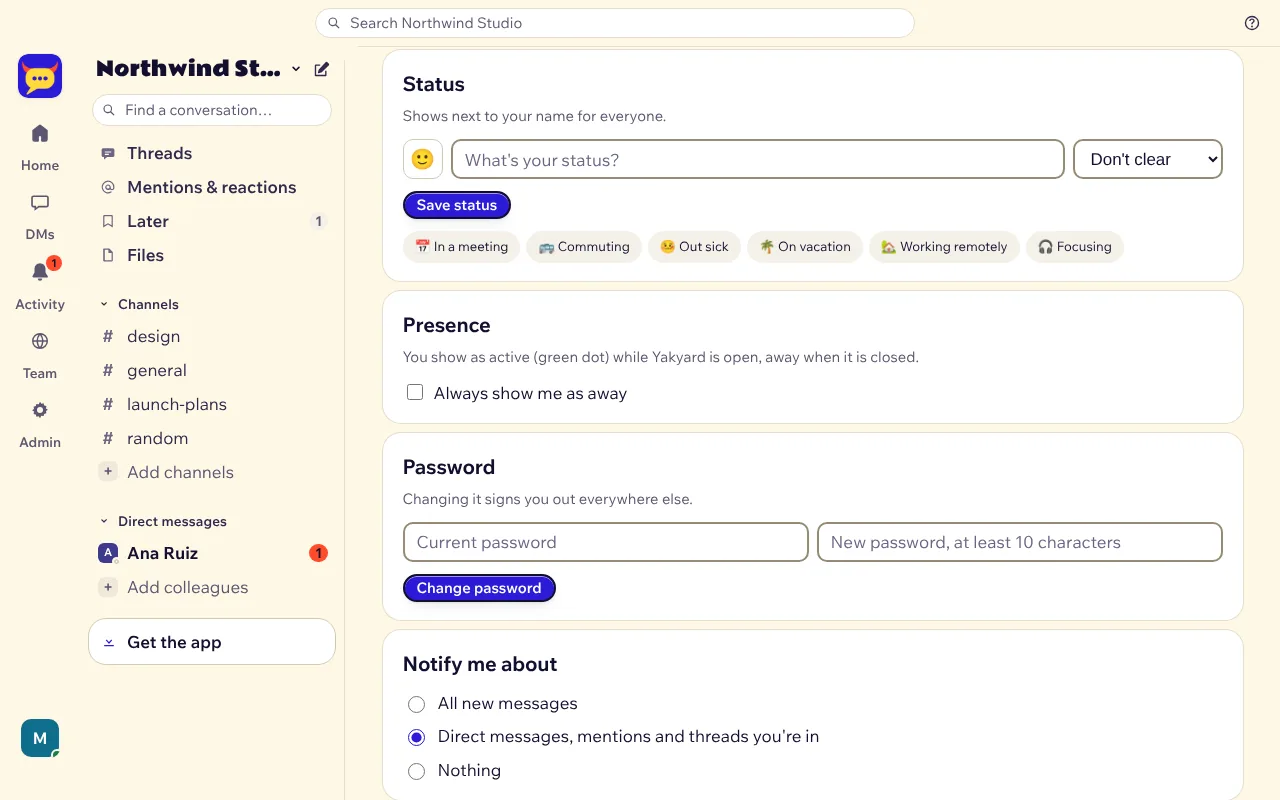
- Notify me about: all new messages, only direct messages, mentions and your threads (the default), or nothing.
- This device: turn notifications on for the phone or computer you are on. Each device asks once.
- Do not disturb: quiet hours every day, or Pause notifications for a while. People see a moon next to your name.
- VIPs: direct messages from these people still reach you while you're paused.
- While Yakyard is open on your screen, your phone stays quiet.
On iPhone, add Yakyard to your Home Screen first. Notifications only work from the installed app.
Themes and how it looks
In Status and notifications:
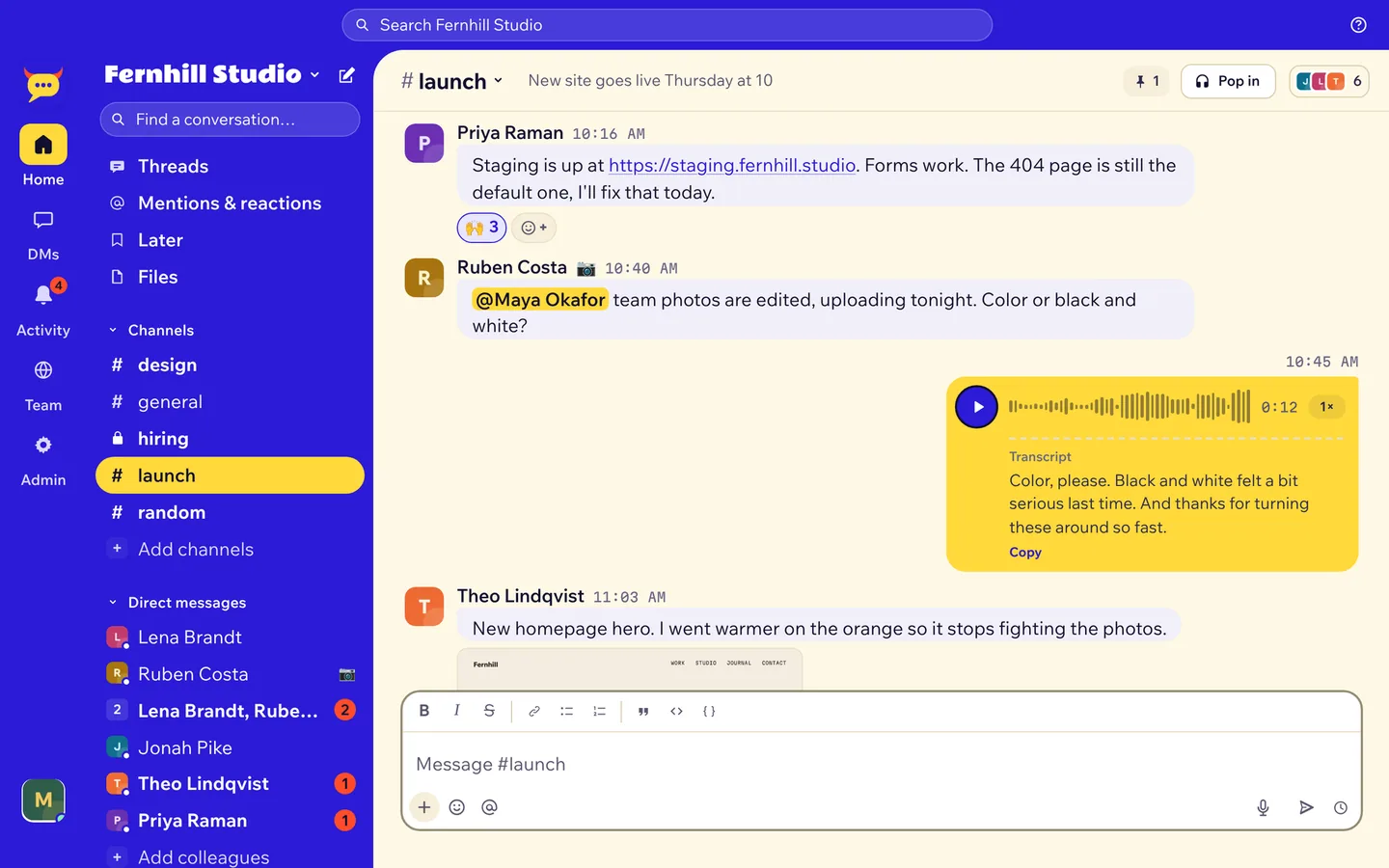
- Theme: Light, Dark, or Yaky (bold color). Match my device follows your phone or computer.
- Look: bubbles like text messages, or a classic list.
- Text size: bigger or smaller, for this device.

Your profile and status
Click your picture at the bottom left.
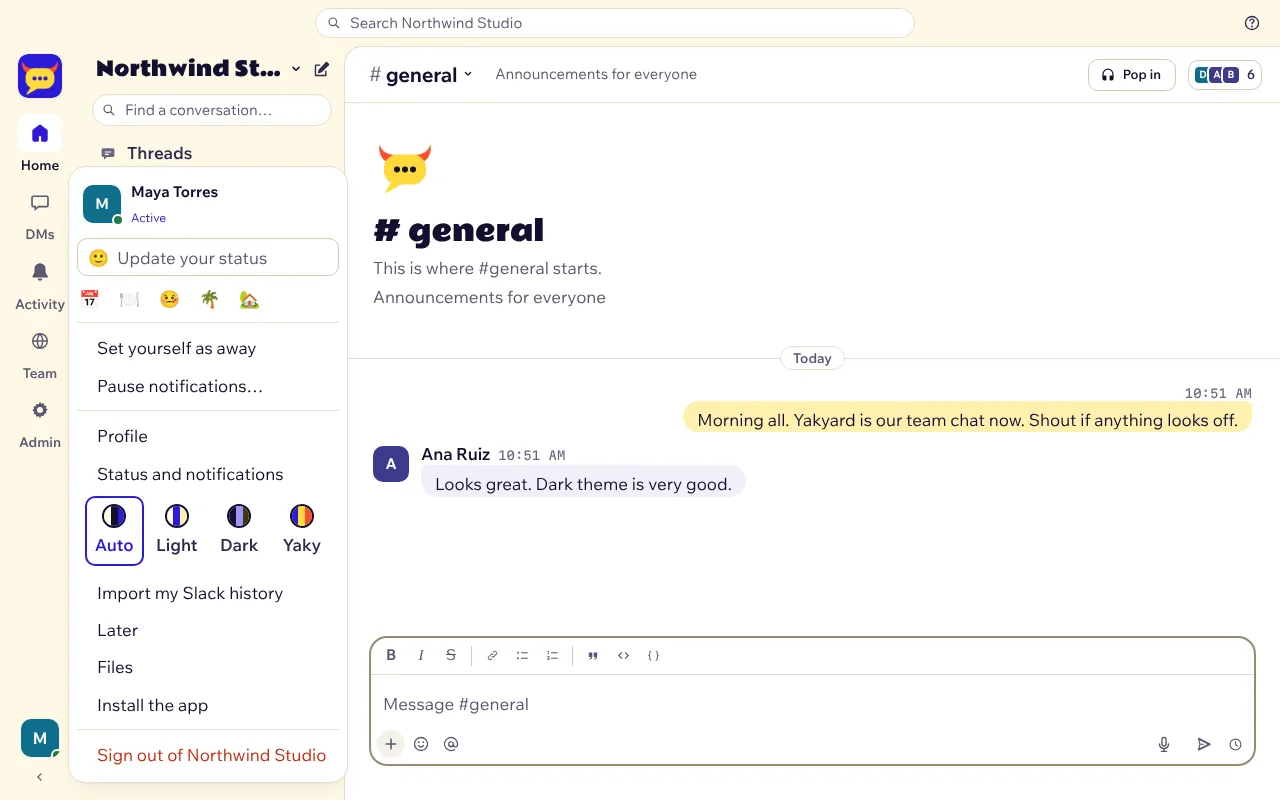
- Status: a short line and an emoji next to your name, like "In a meeting". Pick one of the presets or write your own, and when it should clear.
- Profile: your name, title and photo.
- Set yourself as away hides your green dot until you turn it back.
- The four circles switch the theme for this device.
Keyboard shortcuts
| Keys | Does |
|---|---|
| Ctrl/⌘ + K | Jump to a conversation |
| Ctrl/⌘ + F | Search messages |
| Ctrl/⌘ + Shift + H | Pop in or out of a call |
| Alt + ↑ or ↓ | Previous or next channel |
| Alt + Shift + ↑ or ↓ | Previous or next unread |
| ↑ in an empty box | Edit your last message |
| Shift + Enter | New line |
| Esc | Close a panel, or mark the conversation read |
The ? button lists them too.
Guests
Guests are people from outside your team, like clients or freelancers. They:
- only see the channels they were invited to, and the people in them,
- can send direct messages to those people,
- can't create channels, add people, pin messages or change topics.
Admins invite guests from Invite people by ticking Guest (partner).
Running Yakyard for your team? See Set up Yakyard, free.